User guide
No login required to read this page. Create quotes and contracts on mobile or desktop, export to image or PDF, and send read-only share links for customers.
1. What this app does
A lightweight flow: products & customers → quotes & contracts → export and share.
Common pain points
- Changing price or clauses on the go is awkward without a proper template.
- Multiple quote versions in chat threads make it easy to send the wrong file.
- Turning a quote into a contract by copy-paste is slow and error-prone.
What you get here
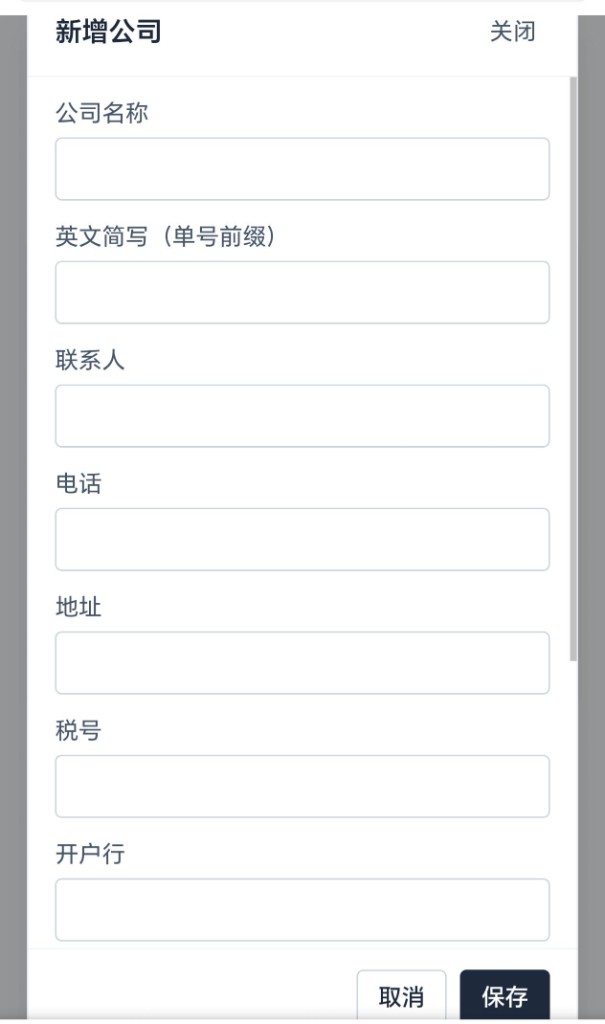
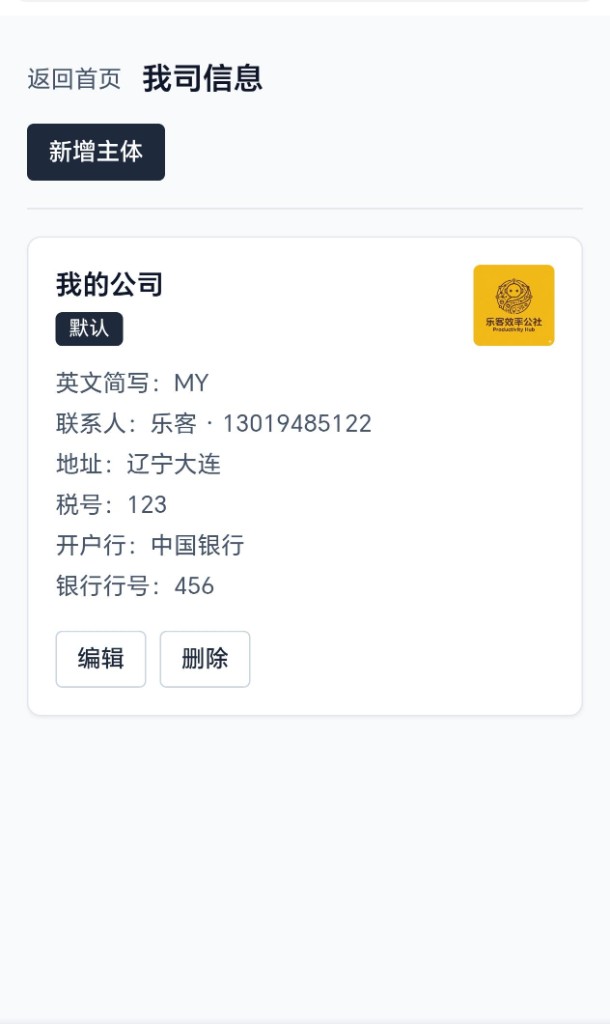
- Products, customers, and company profiles; quotes and contracts in one tool.
- One-click export to image or PDF (works well on phones).
- Read-only share links so recipients cannot edit your document.
- Data stays in this browser by default; export JSON backups from Settings.
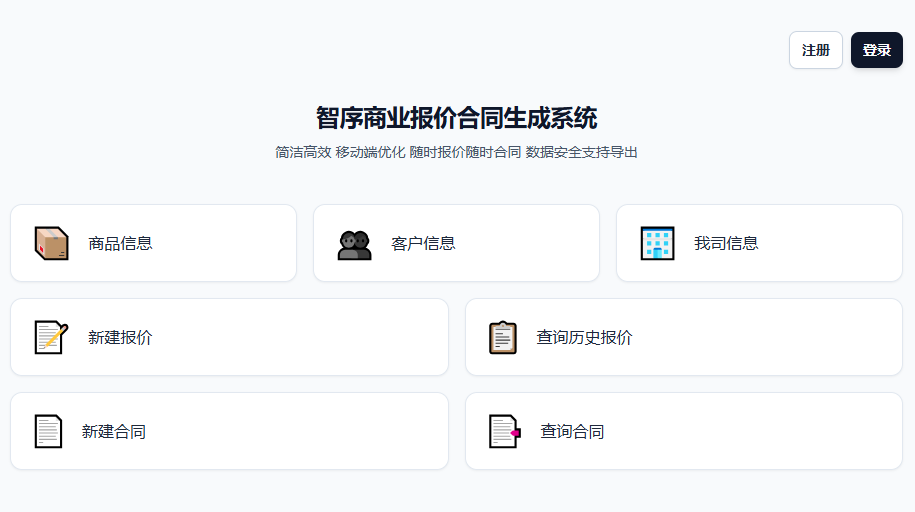
2. Products
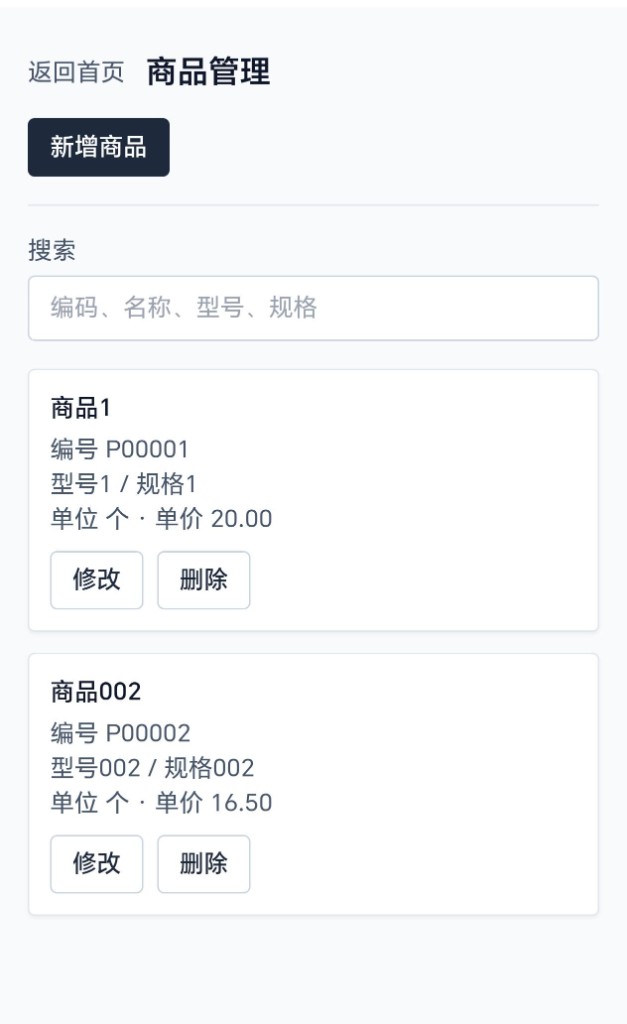
Capture catalog items first so quoting and contracts stay fast.
What you can do
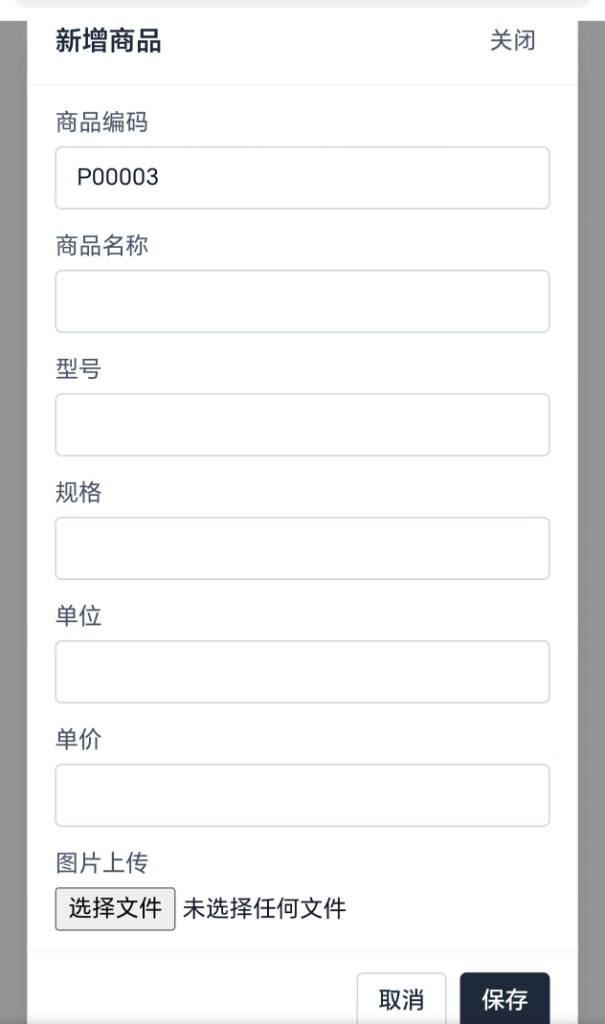
- Add or edit products: code, name, model, specs, unit, unit price.
- Optional image per product; the quote layout can show or hide the image column.
Start with 10–30 items you quote often for smoother field work.
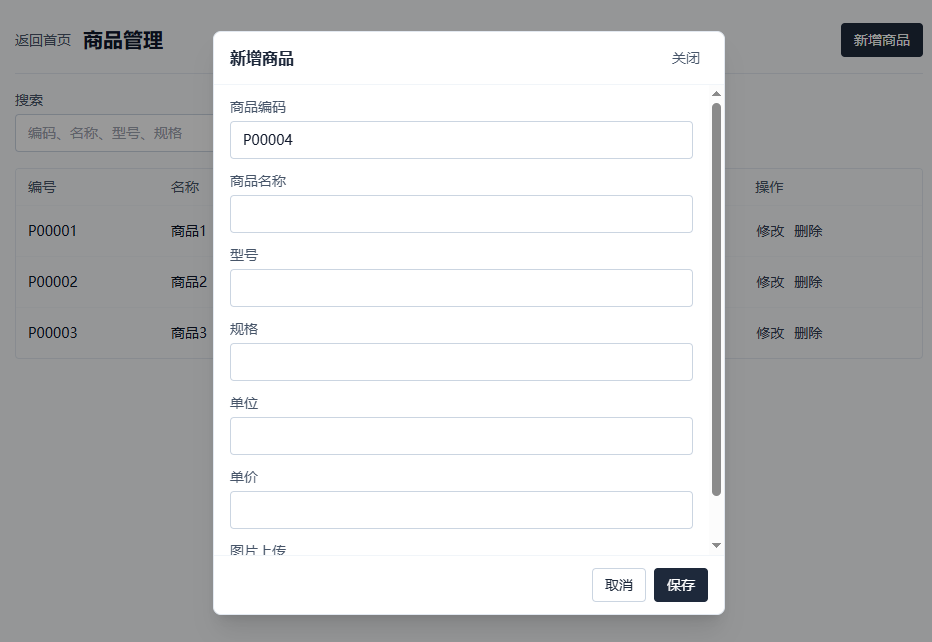
3. Customers
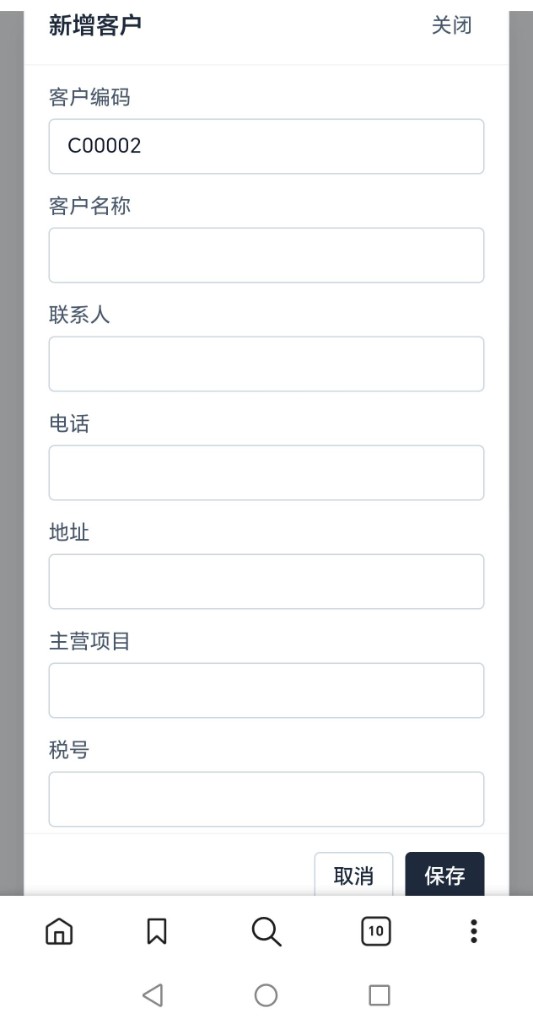
Keep name, contact, phone, address, and billing fields ready.
What you can do
- Add or edit customers: code, contact, phone, address, primary business, tax/bank fields.
- Search and pick a customer on new quote/contract pages, or create one inline.
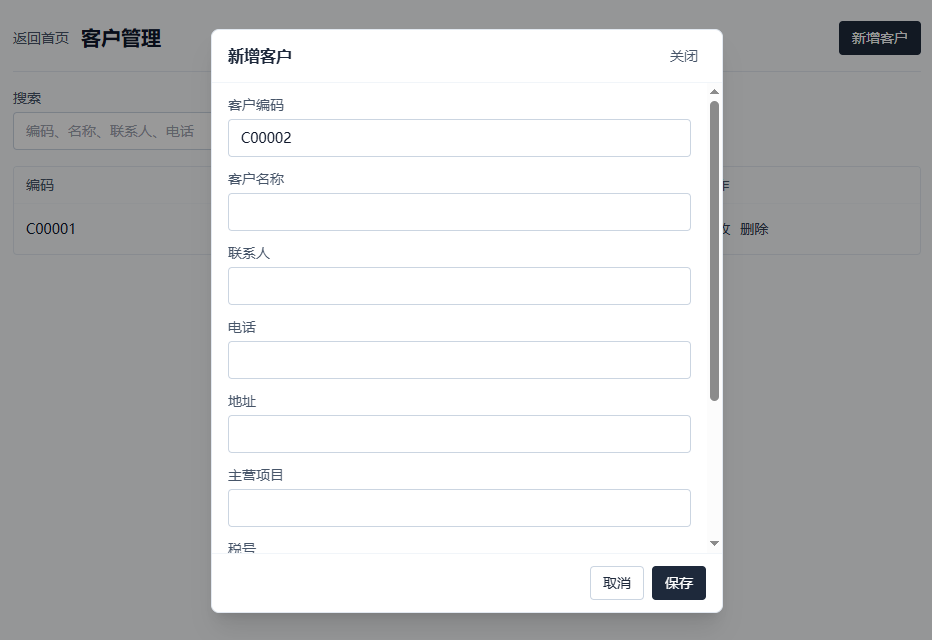
4. Quote list
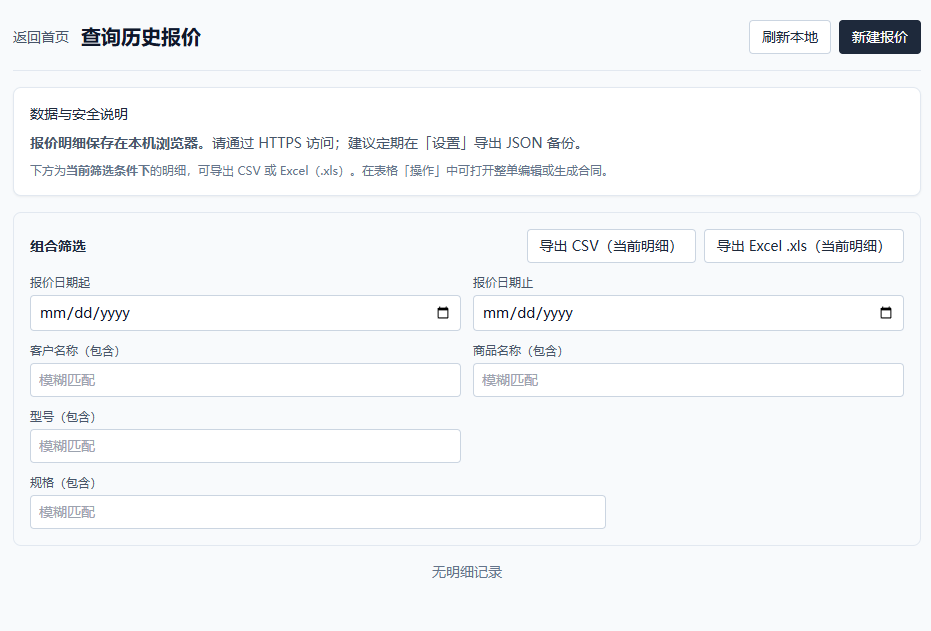
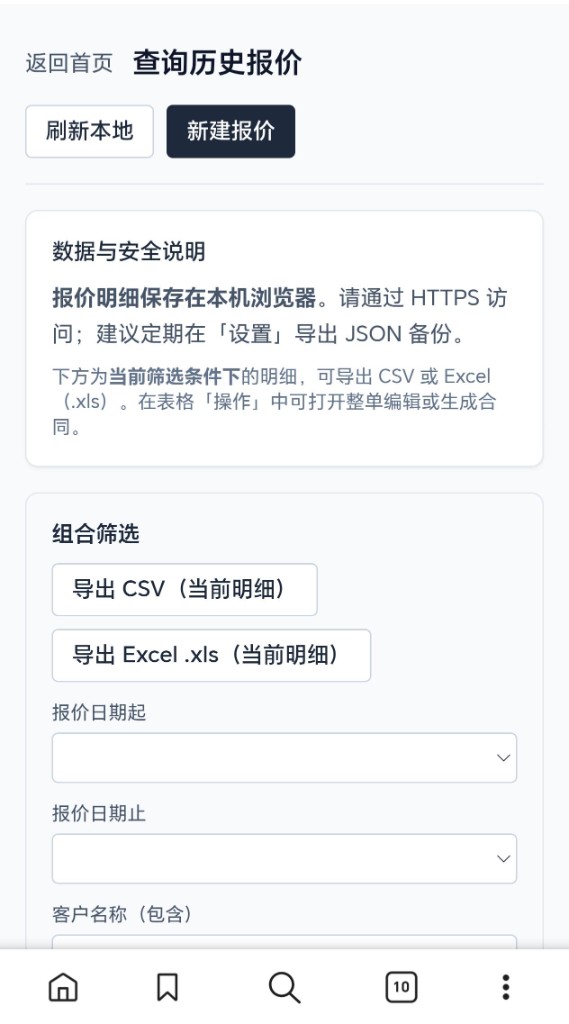
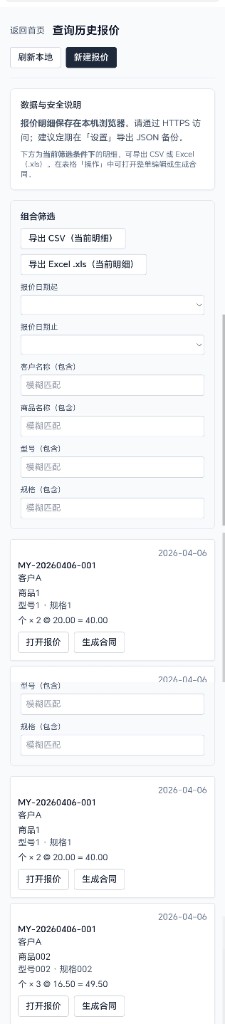
Filter past quotes by date, customer, product, and export CSV or Excel.
Typical use
- Open a recent quote, keep editing, and save as a new version when needed.
- Export filtered rows for internal tracking or spreadsheets.
Use HTTPS and export backups from Settings on a schedule.
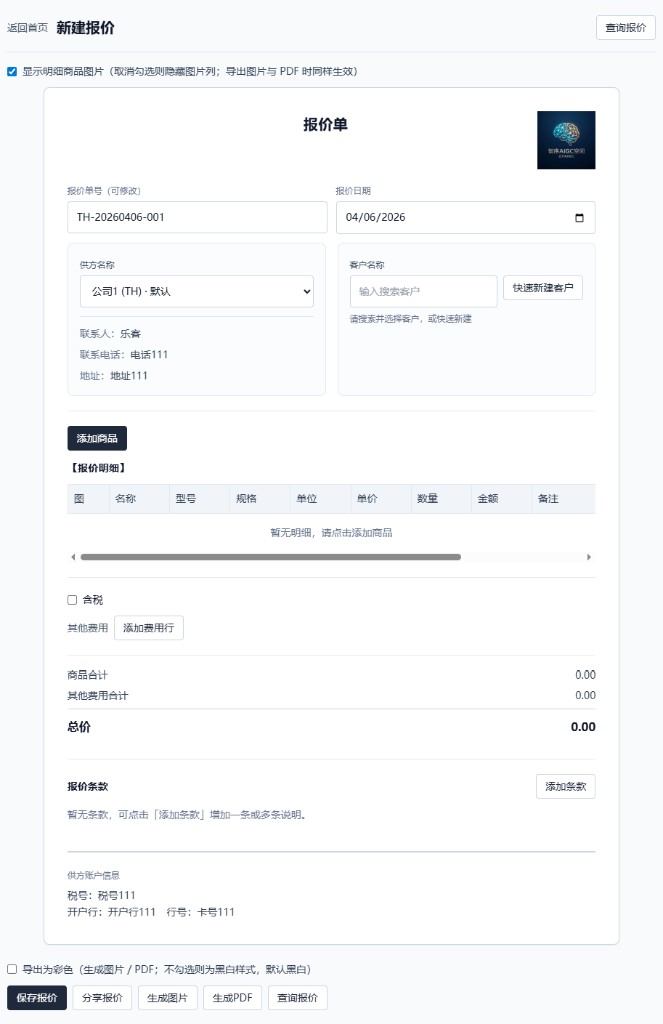
5. Creating a quote (desktop or phone)
Pick your company and customer, add lines, set terms, then export or share.
Steps
- Open New quote and choose supplier (your company) and customer.
- Add products with unit price and quantity; add fees and terms as needed.
- Use Generate image or Generate PDF to save and send from your phone.
- Share quote creates a read-only preview link or QR code for the customer.
Mobile-first
No laptop required—create the quote on site, export, and send by email or chat.
6. Contract list
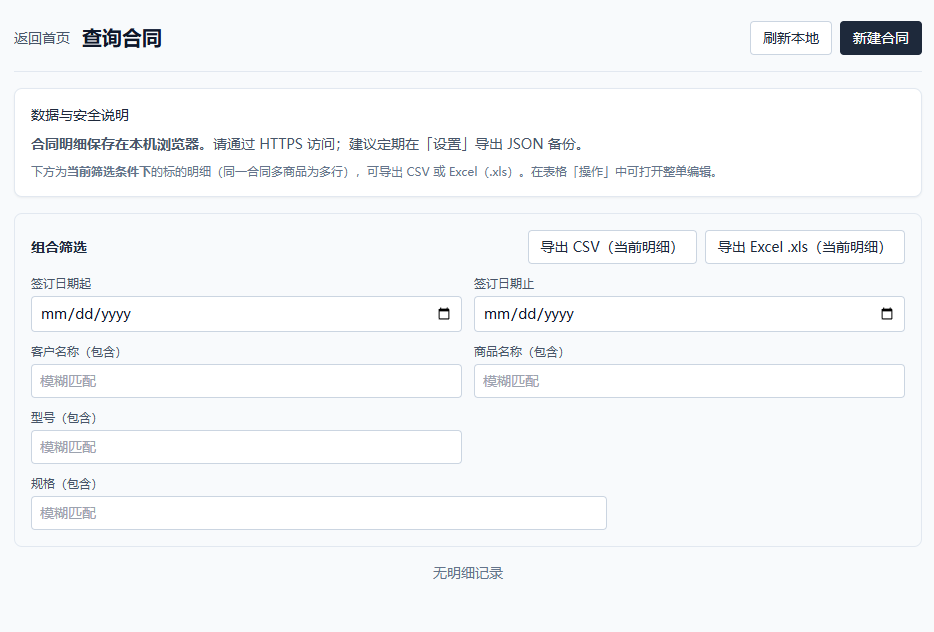
Filter by signed date, customer, product, and export CSV or Excel.
Typical use
- Find a customer's contracts to review clauses and amounts.
- Export the list for filing and internal records.
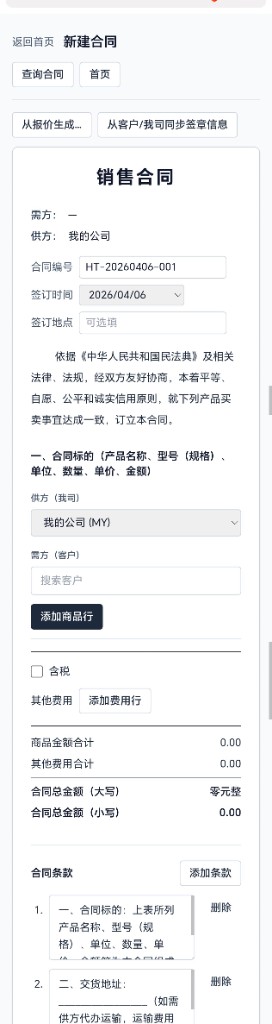
7. Creating a contract
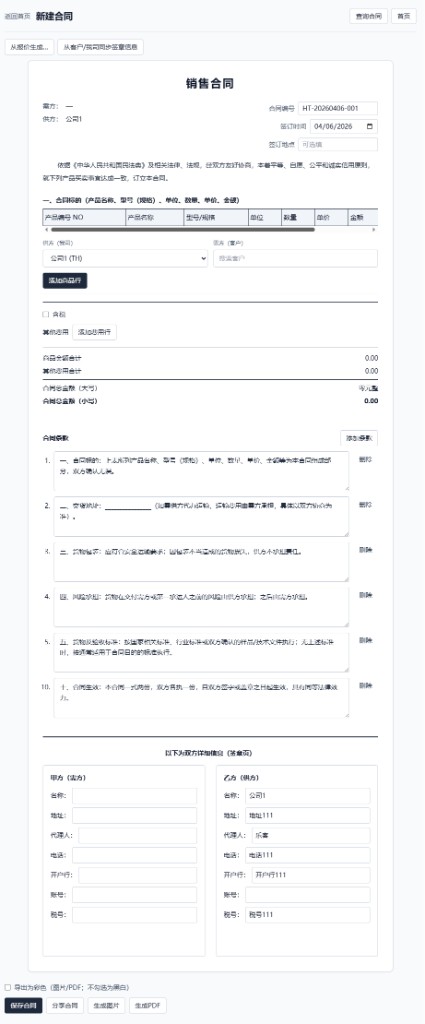
Start blank or generate from a saved quote, then adjust before export.
Options
- New contract: enter number, date, place, line items, and clauses.
- From quote: use Create from quote on the contract screen to pull lines and default terms from a saved quote.
- On mobile you can still generate image, PDF, or a read-only share link.
Mobile-first
Generate and export contracts on the phone so customers can review a clear PDF or image immediately.
8. Mobile screenshots
Examples of the UI on a phone; tap any image to view full size.

Subscribe
A paid plan unlocks full quote and contract features. See plans on the pricing page; manage billing and your account under Settings.